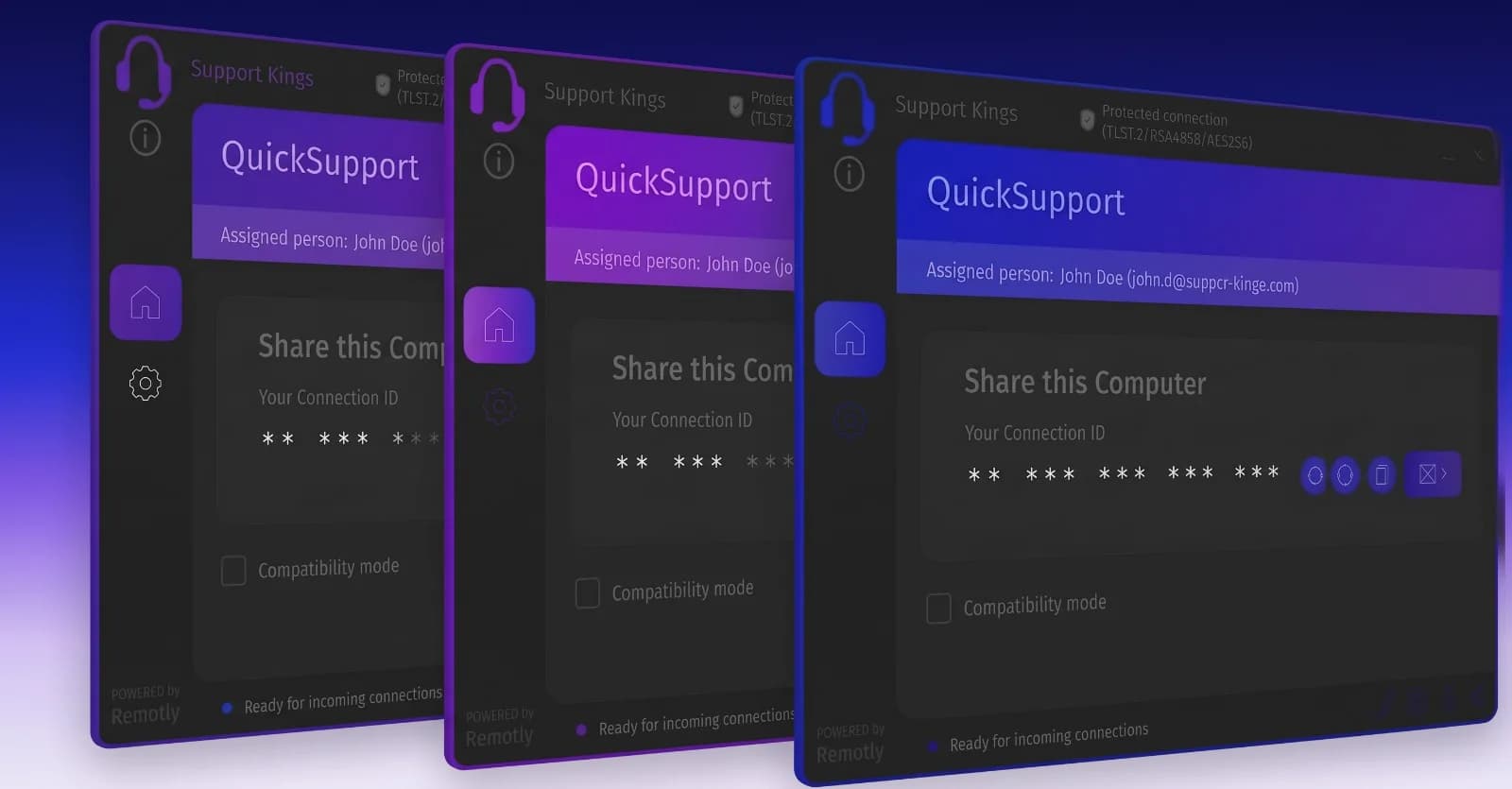
Remotly QuickHost

Ultra‑secure unattended access for system administrators

Remotly QuickHost is a permanent unattended‑access agent built for IT administrators who need full control over the organization's device fleet. Deploy it at scale via Microsoft Intune, brand it with your own identity and manage, support and administer machines anytime — even after a reboot and with no user logged in.

Available for
Host agent: Windows 7 / 8.1 / 10 / 11
Connect from: Windows · macOS · iOS · Android
Access
Unattended, no user logged in
Deployment
Intune · silent install
Identity
Entra ID · Microsoft & Google SSO
Branding
Your logo, colors & details

Solution for

  • IT System Administrators

    Full control of servers and workstations, at the sign‑in screen and after every reboot.

  • In‑house Support Teams

    Fix employee machines without asking anyone to click through an install.

  • IT Freelancers & MSPs

    Manage many client organizations with branded agents and per‑client relays.

  • Enterprise IT Departments

    Roll out via Intune, authorize through Entra ID, revoke access instantly.

  • Data Center Operations

    Headless machines with virtual displays, Wake‑on‑LAN and remote power control.

  • Distributed Workforces

    Reach every laptop in the field through the cloud or your private relay.

What makes Remotly QuickHost special?

1

Unattended Access

  • Zero‑User Access: Connect at the Windows sign‑in screen with no user logged in — the agent starts with Windows and is reachable right after boot.

  • Remote Reboot: Restart machines remotely and regain the connection automatically after reboots or updates.

  • Wake‑on‑LAN & Power Control: Wake‑on‑LAN (also from external networks via a private relay), automatic and forced wake‑up, remote sleep, hibernate and lock.

  • Organization‑Only Connections: Connections through QuickHost are available only to users from your organization.

  • Remote Camera: Preview the remote device's camera in unattended mode, without a user present.

  • Virtual Display Adapter: Full control over headless machines without attached physical monitors.

2

Mass Deployment & Branding

  • Personalized Installer: Download a ready installer from the admin panel with your logo, colors, address details and module names.

  • Silent Installation: A ready‑made silent‑install command with your organization token, generated in the panel.

  • Microsoft Intune: Mass deployment as a Win32 / .intunewin package, or manual installation where needed.

  • Silent Signed Updates: Applications update automatically and silently, with digitally signed packages.

3

Enterprise Administration

  • Web Admin Panel: Assign licenses to users directly from the panel, manage permissions for users and groups, and configure QuickHost branding.

  • Connection History: Who connected, when and to which device — with on‑demand session recording for audit and compliance.

  • Device Filtering: Quickly search and filter the device list with online/offline status across large organizations.

  • Microsoft & Google SSO: Sign in with Microsoft or Google accounts and integrate natively with Microsoft Active Directory / Entra ID.

  • Multi-Connection: Up to 8 remote computers per administrator, each in its own window, and up to 4 people on one machine.

4

Security & Access Control

  • End‑to‑End Encryption: AES-256 data streams, TLS 1.2 / 1.3 with Force TLS and RSA-4096 key exchange and authorization.

  • Device Authorization & IP Scoring: The remote computer confirms access requests; IP scoring warns about parties hidden behind a VPN.

  • Private Relay Servers: Run sessions through your own relay, on‑premises or in a private cloud, for full data sovereignty and GDPR compliance.

  • On‑Premises Deployment: The private relay server and Wake‑on‑LAN from external networks are installed on infrastructure your organization designates — session data never has to leave your network.

  • Privacy Mode: Blank the remote screen and lock the keyboard and mouse so bystanders cannot see or interrupt the technician's work.

  • Clipboard Control: Share or block the clipboard between computers to control the flow of data.

Case study

How Pieprzyk Group streamlined distributed infrastructure management with Remotly QuickHost

Read Full Case Study
“If you prioritize security above all else, this is the software for you. Additionally, stable connections and support for high‑quality video significantly ease the workload for IT administrators and the helpdesk team. Remotly is a highly recommended solution for professional applications.”
— Tomasz Fronda, Head of IT, Pieprzyk Group
Pieprzyk Group

Setup Guide

Need help deploying QuickHost across your network or integrating with Entra ID?

View Installation & Usage Guide

Microsoft Entra ID Integration Guide

Import users from Entra ID security groups, deploy a branded installer via Intune and let access follow group membership.

Get the Entra ID Integration Guide

Frequently asked questions

Does QuickHost work when nobody is logged in?

Yes. The agent starts with Windows, so you can connect at the sign‑in screen, restart the machine remotely and regain access automatically after reboots or updates.

Can I connect to QuickHost machines from a Mac or a phone?

Yes. The QuickHost agent itself runs on Windows, but administrators connect from the Remotly client for Windows, the native macOS client or the free iOS and Android apps.

How do we deploy QuickHost to hundreds of machines?

Download the personalized installer from the admin panel together with a silent‑install command containing your organization token, then roll it out via Microsoft Intune as a Win32 / .intunewin package.

Can I integrate QuickHost with Active Directory?

Yes. Sign in with a Microsoft account, grant admin consent, and import users from Entra ID security groups — they receive licenses automatically. Access rights follow group and administrative‑unit membership, and revocation in Entra ID disconnects sessions immediately.

Can connections stay inside our own network?

Yes. Deploy a private relay server on‑premises or in a private cloud, and QuickHost connections are restricted to users from your organization.

Can we brand the QuickHost agent?

Yes. The admin panel generates an installer with your logo, colors, address details and module names.

This website uses cookies to improve your experience while you navigate through the website. Out of these, those that are categorized as necessary are stored on your browser and are used to run basic functionalities of the website.

We also use third‑party cookies that help us analyze and understand how you use this website. They will only be stored in your browser with your consent and you have the opportunity to opt out of them. However, opting out may affect your browsing experience.

NecessaryAlways active

Necessary cookies are absolutely necessary for the website to function properly. These cookies ensure basic functionalities and security features of the website on an anonymous basis.

CookieRetention periodDescription
cookie_consent1 yearStores whether or not the user has consented to the use of cookies. It does not store any personal data.
NEXT_LOCALE1 yearStores language setting selected by user.
themeuntil clearedStores the light or dark theme selected by user (browser storage).
hCaptchasessionSet by the hCaptcha service on the contact and order forms to identify bots and protect the website against spam.
device_token6 monthsCookie used for user/device verification.
session_idsession / 1 monthCookie used to keep user session alive.
logged_insession / 1 monthCookie used to keep user session alive.