All tutorials

Features

Transferring files with Remotly

Send files between connected computers with Send with Remotly, drag and drop, and transfer options.

From host to client

Right‑click a file on the host and choose Send with Remotly.

Send with Remotly

From client to host

Right‑click the file on your client computer and choose Send using Remotly to <host computer name>.
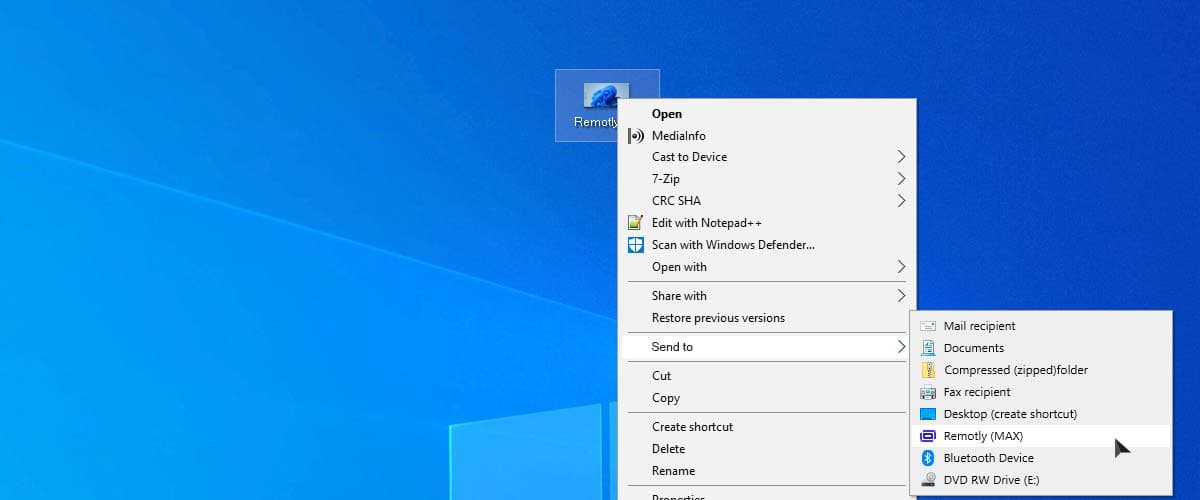
Send to host

You can also drag a file onto the shared desktop window.
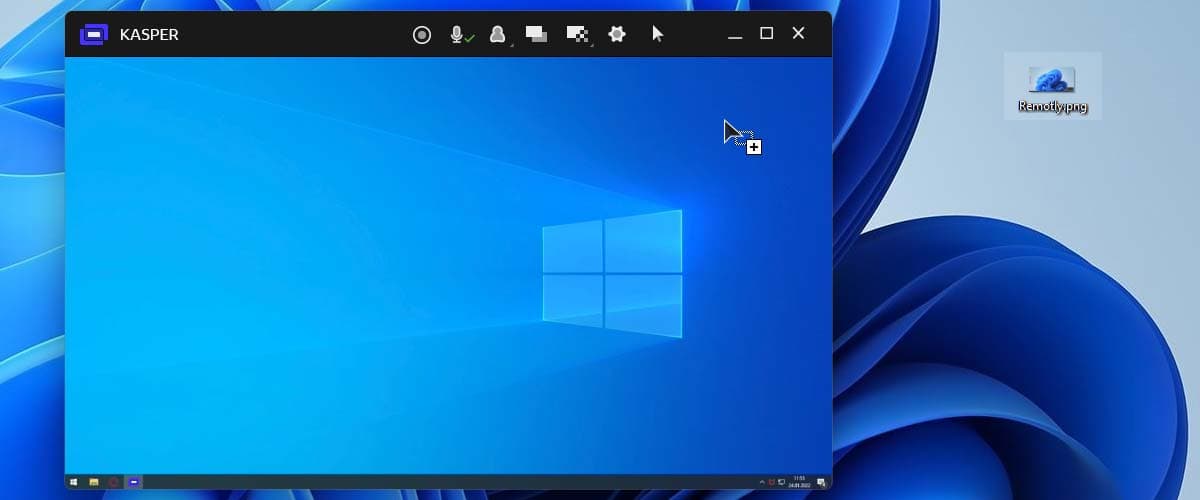
Drag and drop

Transfer progress

Track the progress of every transfer in the application.
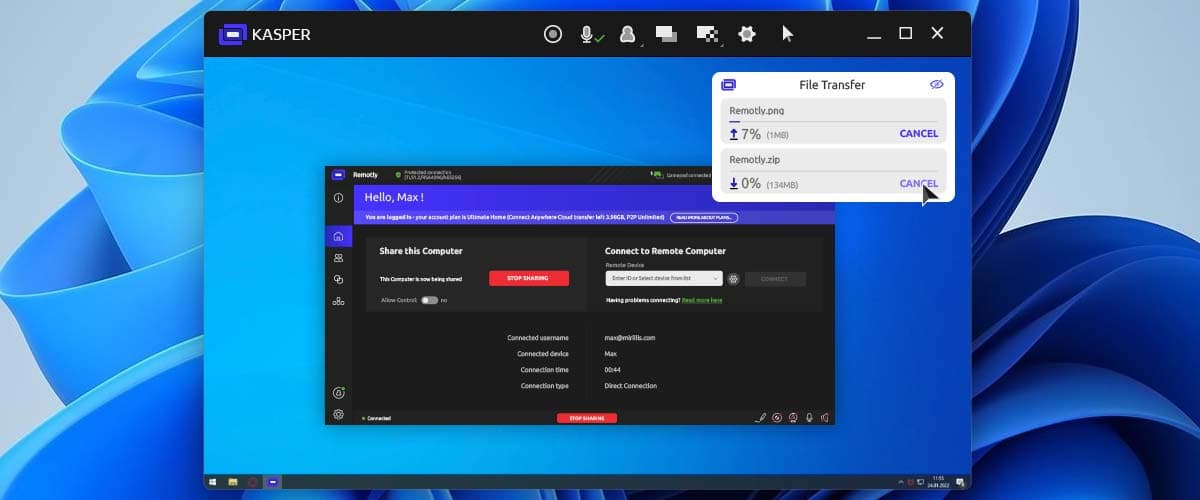
Transfer progress

Options

Set the maximum upload and download speed and choose the target folder in the file transfer settings.
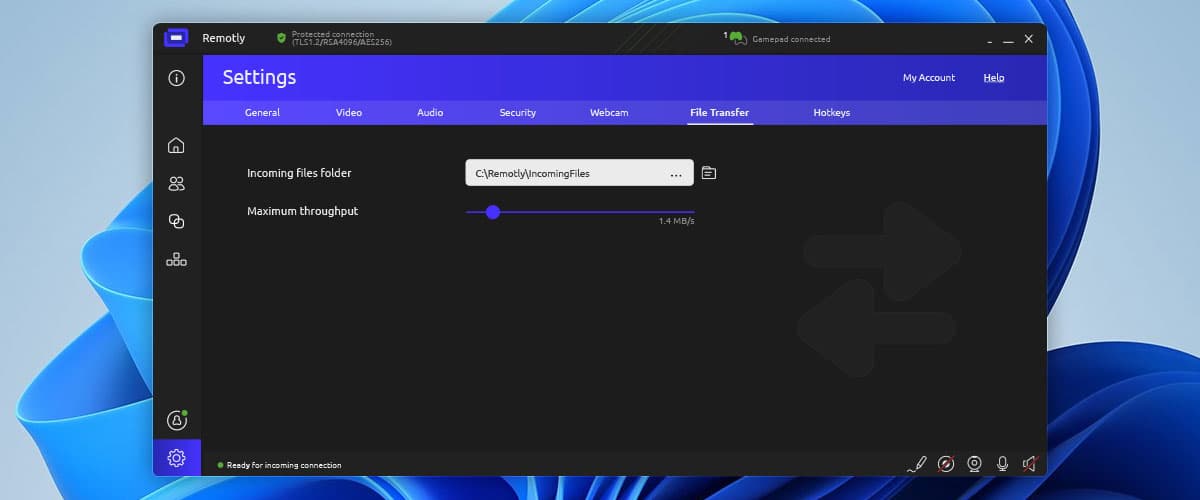
File transfer options

This website uses cookies to improve your experience while you navigate through the website. Out of these, those that are categorized as necessary are stored on your browser and are used to run basic functionalities of the website.

We also use third‑party cookies that help us analyze and understand how you use this website. They will only be stored in your browser with your consent and you have the opportunity to opt out of them. However, opting out may affect your browsing experience.

NecessaryAlways active

Necessary cookies are absolutely necessary for the website to function properly. These cookies ensure basic functionalities and security features of the website on an anonymous basis.

CookieRetention periodDescription
cookie_consent1 yearStores whether or not the user has consented to the use of cookies. It does not store any personal data.
NEXT_LOCALE1 yearStores language setting selected by user.
themeuntil clearedStores the light or dark theme selected by user (browser storage).
hCaptchasessionSet by the hCaptcha service on the contact and order forms to identify bots and protect the website against spam.
device_token6 monthsCookie used for user/device verification.
session_idsession / 1 monthCookie used to keep user session alive.
logged_insession / 1 monthCookie used to keep user session alive.